AI Workflows in Adobe Premiere Pro: The Complete 2026 Guide
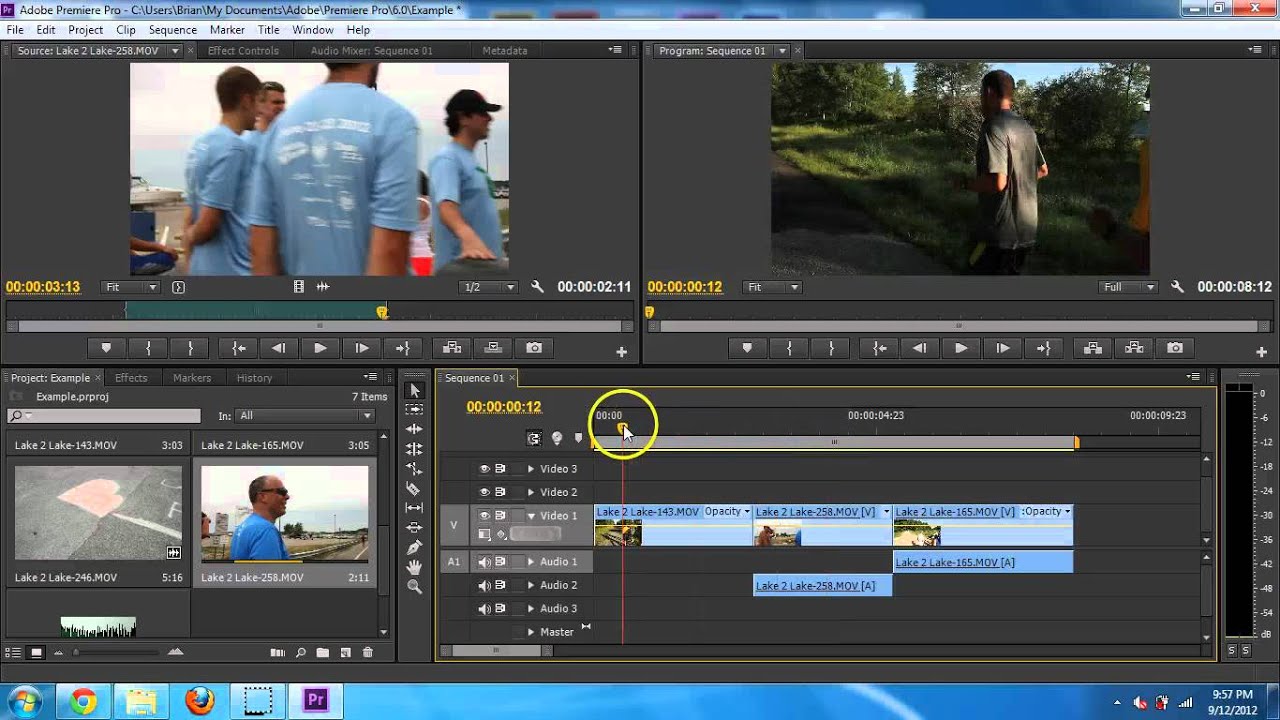
AI Workflows in Adobe Premiere Pro: The Complete 2026 Guide, The days of “spaghetti editing” — dragging clips aimlessly, scrubbing through hours of footage for that one soundbite, and rotoscoping frames by hand — are rapidly ending. Adobe Premiere Pro has evolved into an AI-native workspace where you direct outcomes rather than manipulate timelines.
With the massive updates in Premiere 26.0 (released January 2026) and the Firefly AI Assistant entering public beta (April 2026), the application has shifted from a tool you operate to a collaborator you converse with. This guide explores the specific, high-value AI workflows that are transforming professional editing in 2026.
1. Zero-Click Rotoscoping: The Object Mask Revolution
Masking complex, moving subjects has historically been the most tedious task in post-production. Frame-by-frame rotoscoping could consume hours for just a few seconds of footage.
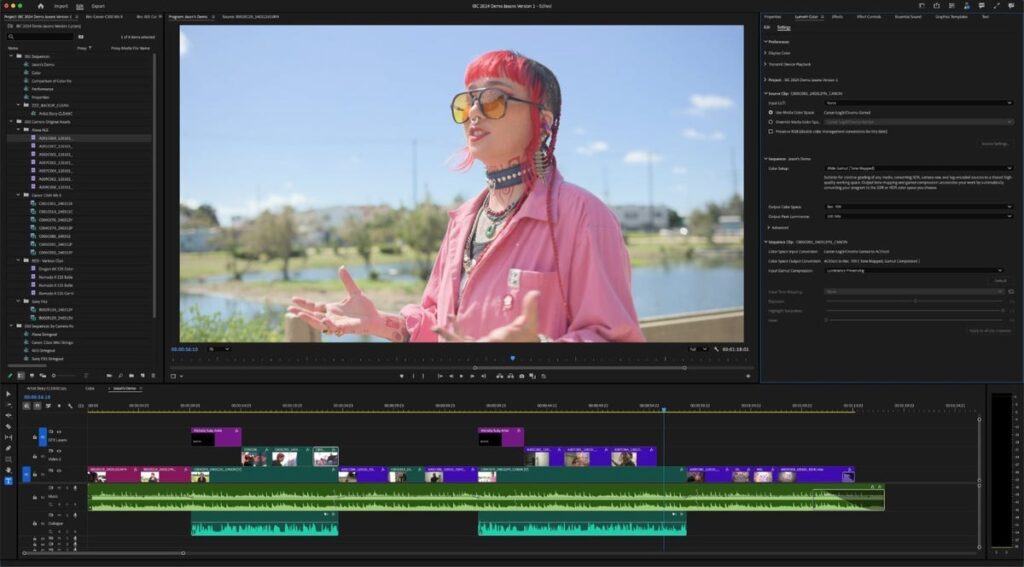
The new AI-powered Object Mask in Premiere 26.0 eliminates this workflow entirely. Using an on-device AI model (ensuring privacy and no cloud uploads), you simply hover your cursor over a person or object in the frame. Visual overlays snap into place, identifying the subject. One click generates a precise, tracked mask that follows the subject through the entire shot.
The Workflow:
- From the toolbar, select the Object Mask tool.
- Hover over your subject until the colored overlay appears (choose from six color options or a black-and-white alpha view).
- Click once. Premiere analyzes the clip and attaches the mask.
- Use the feather and expansion controls to blend the mask edges perfectly.
Practical Applications:
- Isolated Color Grading: Darken the background while leaving your subject fully saturated.
- Background Replacement: Blur a cluttered background or relocate the subject entirely.
- Targeted Effects: Apply sharpening or stylization exclusively to a moving car or actor.
According to Adobe, this tool transforms masking from a “roadblock to your flow” into a “creative superpower”. It’s not just faster than manual rotoscoping — it removes the technical barrier entirely, letting you focus on the creative “why” instead of the mechanical “how”.
2. Dialogue-Driven Editing with Text-Based Editing
The Text-Based Editing workflow, powered by Adobe Sensei, has fundamentally inverted the editing process. Instead of cutting a timeline by sight, you now build a sequence by reading.
The Workflow:
- Import & Transcribe: Drop your interview or dialogue footage into a sequence. Premiere automatically transcribes the audio.
- Search & Select: Open the Text panel. You now have a full, searchable transcript. Need the section about “budget cuts”? Type it in. Every instance is highlighted.
- Build the Rough Cut: Read through the transcript. Highlight the sentences or paragraphs you want. Click “Insert,” and Premiere places those corresponding video clips onto your timeline in order. A 2-hour interview can be cut down to a tight 5-minute narrative in minutes.
- Refine with Text: Notice a long pause or a “um”? Delete the ellipsis or filler word in the text panel. The pause vanishes from your timeline instantly.
Pro Tip for Dialogue Cleanup: Use the search function to find specific filler words across your entire sequence (“um,” “uh,” “like,” “you know”). Premiere lists every instance, allowing you to navigate and remove them surgically.
3. Agentic Workflows: The Firefly AI Assistant (Public Beta)
The most significant shift in 2026 is the arrival of the Adobe Firefly AI Assistant, now in public beta for Creative Cloud Pro and paid Firefly subscribers. This isn’t just a new filter or effect; it is an agentic layer that orchestrates actions across Photoshop, Lightroom, Illustrator, and Premiere Pro.
The core interaction is a unified chat interface. You describe the outcome you want in plain language — “turn this interview into a vertical clip for Instagram with captions and a blurred background” — and the assistant autonomously maps out and executes the multi-step workflow using Premiere’s 60+ pro-grade creative skills.
A Practical Assistant Workflow:
- Concept: You have a horizontal 16:9 video of a spokesperson.
- The Prompt: “Remix this for a 9:16 social short. Keep the speaker centered, track their face, blur the background, and add animated captions.”
- Execution: The Assistant analyzes the frame, applies Auto Reframe for the aspect ratio, creates an Object Mask for depth-of-field blur, and uses the text-based editing engine to generate stylized captions.
- Human Review: The assistant displays its planned steps before execution. You can approve, modify, or take over at any point.
4. Automatic Script-to-Video Alignment
For creators working with voiceovers, tutorials, or corporate videos, syncing footage to a script is a nightmare of manual scrubbing. The Script-Based Editing feature (available via the Cutback/Premiere Assistant plugin) solves this by inverting the logic.
The Workflow:
- Import Script: Copy and paste your final script into the Premiere Assistant chat interface.
- Match Footage: The AI aligns the script text with the transcribed audio of your takes.
- Choose Fidelity: Select “Stick to the script” (cuts out anything not in the script) or “Use script as a guideline” (keeps contextually relevant off-script material).
- Generate Cut: The assistant builds a timeline sequence that matches your written narrative exactly.
This tool is invaluable for documentary filmmakers working with archival audio or corporate editors who need to ensure a CEO’s video matches the teleprompter script perfectly.
5. AI-Driven Audio Cleanup: The “Enhance Speech” Chain
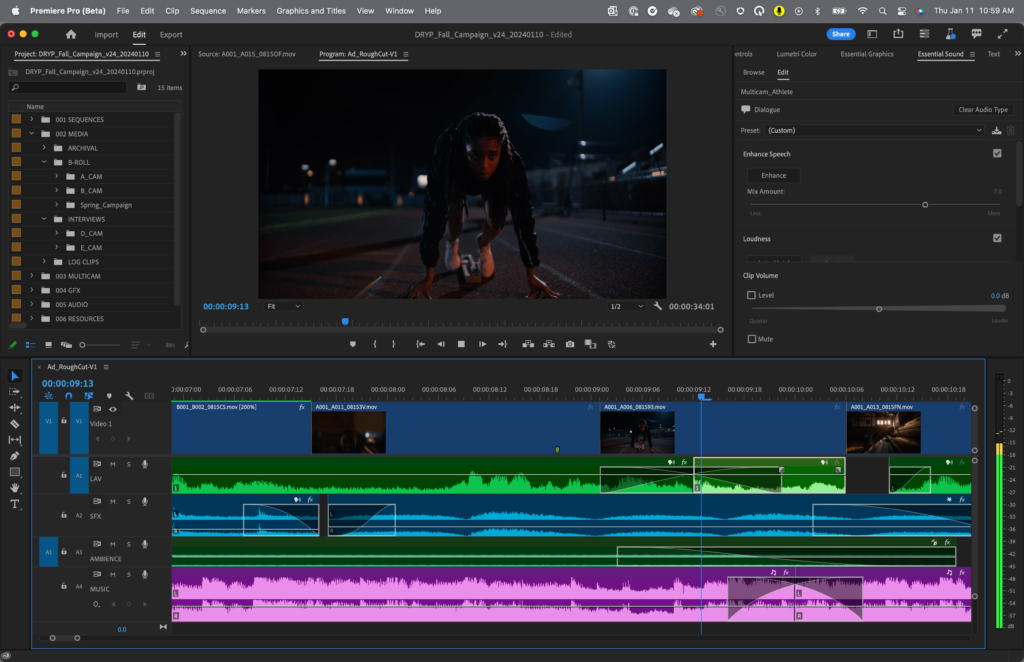
Audio quality makes or breaks a video, yet so much footage is recorded in echoey conference rooms or windy streets. The Enhance Speech tool in the Essential Sound panel is a deep-learning model trained to separate dialogue from noise.
The Pro Workflow:
- Duplicate for Safety: Right-click your audio track and select “Duplicate.” Keep the original muted as a backup.
- Apply Enhance Speech: Select the clip and toggle on “Enhance Speech.”
- Dial the Mix: Adjust the intensity using the “Mix” slider. 100% can sound artificial. Professional editors typically aim for 70–85% to clean the audio without losing natural room tone.
This tool is specifically designed for dialogue; using it on music or complex soundscapes will produce artifacts. Think of it as a surgical restoration tool rather than a general equalizer.
6. Smart Music Retiming with the Remix Tool
Stretching a 2-minute song to fit a 90-second montage used to require cutting waveforms and praying the beat matched. The Remix Tool automates this entirely using beat detection technology.
The Workflow:
- Select the Remix Tool: Located in the toolbar (icon of a musical note with arrows).
- Drag to Fit: Simply hover over the end of your music clip on the timeline and drag it to your desired length (e.g., from 2:00 to 1:30).
- AI Recomposition: Premiere analyzes the musical structure (beats, phrases, transitions) and finds intelligent points to shorten or loop the song smoothly.
To refine the result, adjust the “Segments” and “Variations” sliders in the Essential Sound panel to prioritize longer musical phrases or more melodic variety. This tool turns a 20-minute audio editing chore into a 10-second drag-and-drop.
7. The Collaborative AI Loop (Frame.io V4)
AI isn’t just about generation; it’s about iteration. The new Frame.io V4 panel (currently in beta) integrates directly into Premiere, allowing stakeholders to leave time-stamped comments that appear live on your timeline.
The AI Collaboration Loop:
- A producer watches your cut on their browser via Frame.io.
- They leave a comment: “Add a blur to the license plate at 00:32.”
- That comment syncs instantly to your Premiere timeline.
- You can even ask an AI Assistant to interpret that feedback and apply the necessary masking automatically, creating a fully autonomous revision cycle.
8. Traditional AI Tools: Auto Reframe & Auto Color
While the new innovations are exciting, the established AI pillars remain essential:
- Auto Reframe: Essential for the social media editor. It analyzes your 16:9 sequence and automatically generates 9:16 (vertical), 1:1 (square), or 4:5 versions by tracking the action. It saves hours of manual keyframing.
- Auto Color & Color Match: The “Auto” button in Lumetri provides a neutral starting point for color correction. Even more powerful is Color Match — select a reference frame (e.g., from a famous movie), click “Apply Match,” and the AI maps the target clip’s color, contrast, and luminance to match the reference.
The Bottom Line: From Operator to Director
The AI workflow in Premiere Pro is not about pushing a “make movie” button. It is about delegating the mechanical to focus on the intentional.
The editor of 2026 no longer spends 70% of their time on technical maintenance (masking, syncing, color balancing). They spend 70% of their time on creative direction, using tools like Object Mask to isolate a subject instantly or the AI Assistant to repurpose an ad for six different platforms.
These workflows, available now in Premiere 26.0 or the Firefly AI beta, represent the biggest productivity leap for video editors since the transition from tape to non-linear editing.
Frequently Asked Questions (FAQ)
Q: Is the Object Mask tool accurate enough for client work?
It handles clear, well-lit subjects extremely well (90% accuracy). For noisy, low-contrast, or highly complex footage (hair blowing in wind), manual refinement may still be needed.
Q: Does Enhance Speech require an internet connection?
Yes. The deep-learning model processes the audio on Adobe’s servers to strip out background noise and reverb, so an internet connection is required.
Q: Is the Firefly AI Assistant free?
It is currently in public beta for Creative Cloud Pro and paid Firefly plan subscribers (Pro, Pro Plus, Premium). Beta users receive dedicated generative credits at no additional cost.
Q: Can I use the Remix Tool on any music track?
Yes. However, complex classical music with varying tempos may produce less seamless results than consistent beat-driven electronic or pop music. Always preview the result.