Adobe Photoshop AI Workflows in 2026: From Generative Fill to Agentic Assistants
Adobe Photoshop AI Workflows in 2026: From Generative Fill to Agentic Assistants The way we edit images has fundamentally changed. What once required hours of meticulous masking, cloning, and compositing can now be accomplished with a few sentences typed into a prompt field. But the real revolution isn’t just about speed—it’s about workflow integration.
Adobe has woven generative AI directly into the fabric of Photoshop, transforming it from a tool you learn into a collaborator you converse with. This guide walks through the complete AI workflow ecosystem in Photoshop as of May 2026—from the foundational Generative Fill features to the new agentic AI Assistant that works across your entire Creative Cloud suite.
1. The Foundation: Generative Fill and Generative Expand
Before exploring advanced workflows, you need to understand the core AI tools that have become standard in Photoshop.
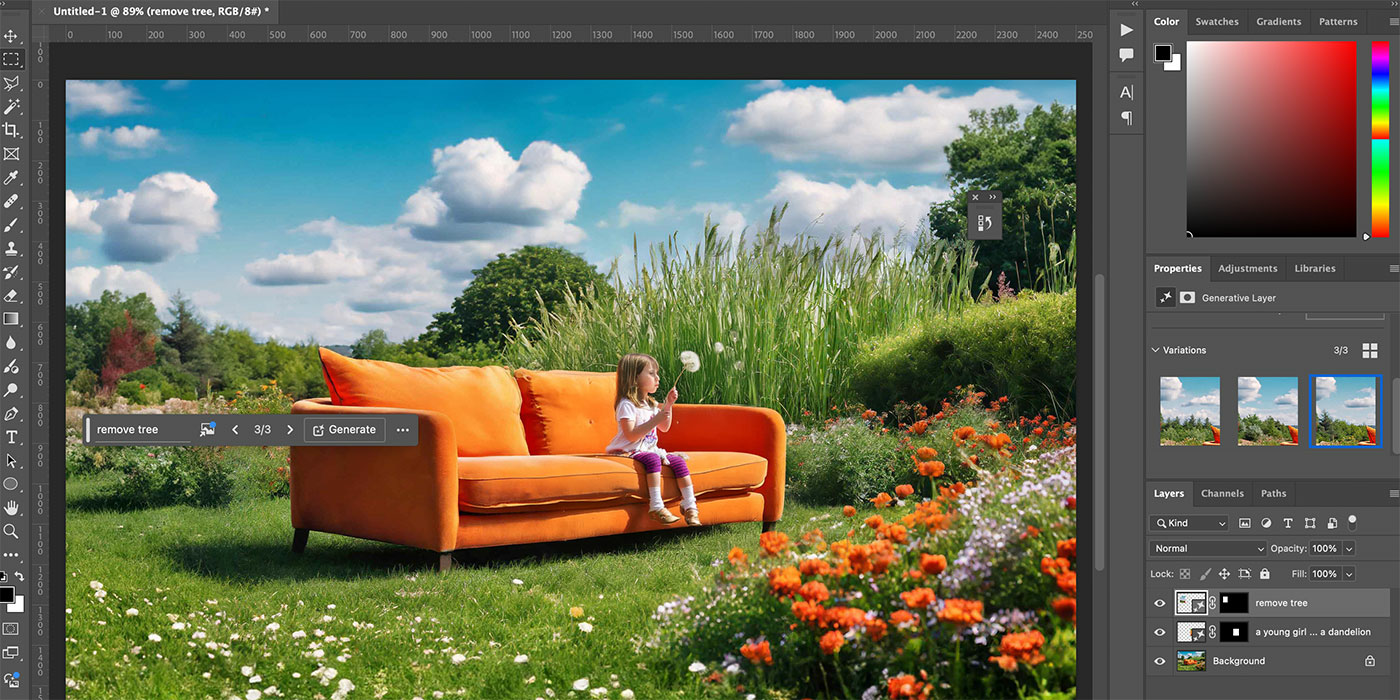
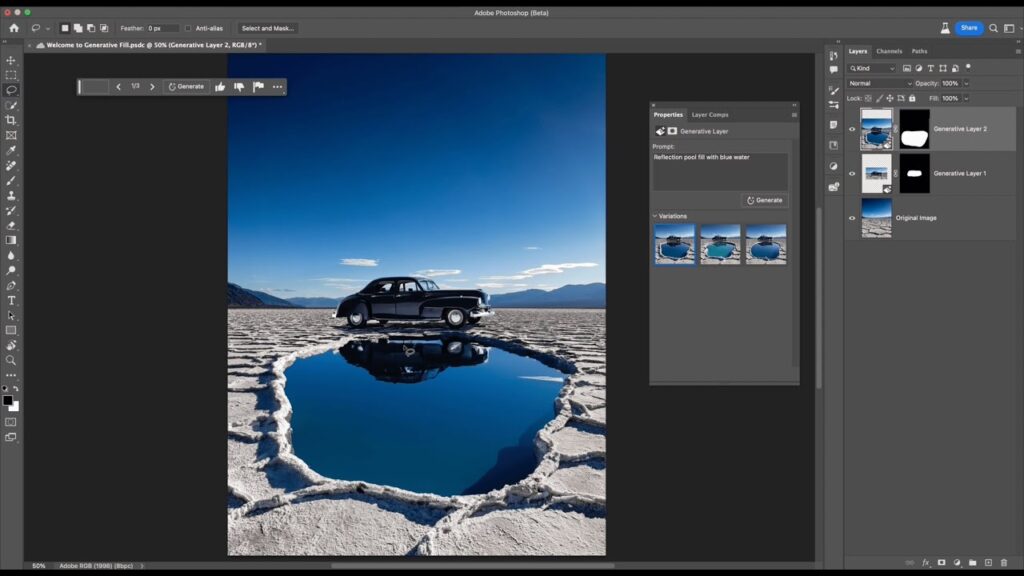
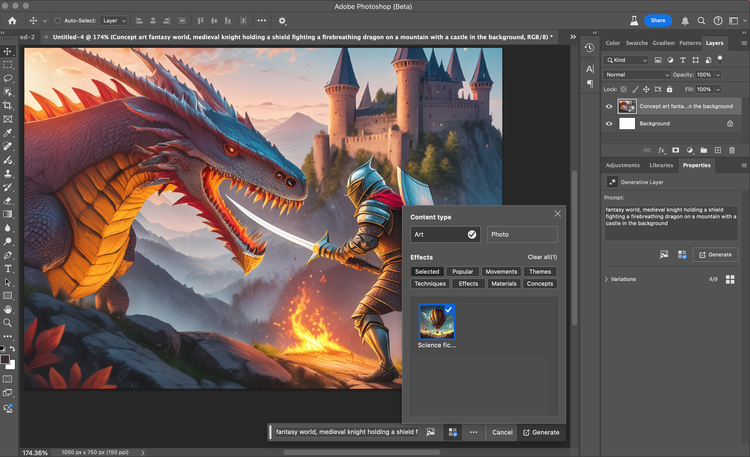
Generative Fill allows you to select an area of an image and replace it with something new simply by describing what you want. Need a product shot moved from a studio to a mountain landscape? Select the background, type “snow-covered mountains with a lake and blue sky,” and Photoshop generates several variations in seconds.
Generative Expand solves the dimension problem. When you have an image shot in portrait but need it in landscape, or you want to zoom out beyond the original frame, use the Crop tool to expand the canvas, then click Generative Expand. Photoshop fills the new areas seamlessly, matching lighting, perspective, and style.
What makes these different from earlier versions: The April 2026 update (version 27.6) introduced an updated Firefly Fill and Expand model, delivering sharper resolution, improved photorealism, better prompt understanding, and more varied outputs.
2. The April 2026 Update: What’s New
Adobe’s April 2026 release (version 27.6) brought several significant additions that directly impact workflows:
Rotate Object (Now Generally Available)
Previously in beta, Rotate Object now works as a full feature. You can select flat 2D elements on your canvas, adjust their angle using on-canvas controls, and preview changes in real-time. After rotation, use Harmonize to blend the object seamlessly into your composition. This eliminates multi-step workarounds for adjusting perspective.
Firefly Image Model 5 Integration
Generative Fill now uses Firefly Image Model 5, which responds more naturally to simple text prompts and delivers higher-quality outputs. The model understands scene-level instructions—not just “add a tree” but “transform this into a moody autumn forest scene with golden light”.
The Generative Model Picker
A redesigned model picker in the Contextual Task Bar lets you choose which AI model to use for each generation. Options include:
- Adobe Firefly models (commercially safe, trained on licensed data)
- Partner models like Google’s Gemini Nano Banana/Nano Banana 2 and Black Forest Labs’ FLUX
This matters because different models excel at different tasks. Firefly is optimized for photorealism. Partner models may offer specific style capabilities.
Generative Credits Tracking
A new panel provides a clear breakdown of credit costs for generative features—no more guessing where your credits went.
3. Layer Cleanup and AI-Powered Organization
One of the most practical workflow improvements in the April 2026 update is AI-powered Layer Cleanup.
When working on complex compositions, layer counts can spiral out of control. The new Layer Cleanup tool automatically:
- Detects and removes empty layers that accumulate during editing
- Renames layers with meaningful descriptions based on their content
You can preview changes before applying them, and the entire process is non-destructive with full undo support.
Why this matters for teams: When handing off Photoshop files to colleagues or agencies, clean layer naming conventions reduce confusion and revision cycles. The AI handles this automatically.
Refreshed Actions Panel
The Actions panel now includes natural language search, suggested actions based on your current image, and live canvas previews. Find and apply repetitive tasks faster without remembering where specific actions are buried in menus.
4. Third-Party Model Workflows: The Nano Banana Example
Adobe has opened Photoshop to partner AI models, and the results are transformative for specific creative workflows. The Google Gemini models—Nano Banana and Nano Banana 2—are particularly notable.
Real Workflow: Transforming a Photograph into Line Art
Here is an actual workflow using Nano Banana Pro in Photoshop, adapted from Adobe’s official tutorial:
Step 1: Select and Prompt
With your base image open, select the entire canvas (Ctrl+A/Cmd+A). In the Contextual Task Bar, choose Generative Fill. Enter a prompt describing your desired transformation. For line art: “Convert to simple black and white thick lines drawn with a ballpoint pen. Negative prompt: shadows, shading.”
Step 2: Choose Your Model
In the model picker, select Nano Banana Pro. Click Generate.
Step 3: Invert and Blend
The result will appear as a new layer. Add an Invert adjustment layer to flip black to white. Use a clipping mask to apply the inversion only to the generated layer. Change the blend mode to Screen—the black areas become transparent, leaving only the white line art visible over your original image.
Step 4: Refine with Layer Masks
Some lines may appear in unwanted places (eyes, mouth, nose). Add a layer mask to the generated layer and paint with black to hide specific lines. This preserves the realism of facial features while keeping the stylized line work elsewhere.
Step 5: Generate a New Background
Hide the line art temporarily. Reselect the original background, choose Generative Fill, and prompt for your desired environment (e.g., “anime style, graffiti-style wall”). Generate with Nano Banana Pro.
Step 6: Composite
Remove the background from your original subject, then layer: background → subject → line art. Add a black and white adjustment layer to the subject for a unified monochromatic look.
The result: A stylized composite that would have required manual tracing, masking, and compositing—now completed in minutes through conversational prompting and model selection.
Workflow insight: The Adobe tutorial notes that while you could theoretically generate the entire composite in a single prompt, breaking the process into steps gives you more control. When you generate everything at once, fixing one problematic area often requires regenerating the whole image. Step-by-step compositing allows targeted corrections.
5. Multiple Reference Images for Partner Models
When working with partner models like Flux and Gemini, you can now upload multiple reference images to better control composition, style, and output.
Practical application: Need to maintain character consistency across multiple generated variations? Upload reference images showing the character from different angles, then prompt for new poses or expressions. The model understands the reference material and generates outputs that maintain visual identity.
6. Firefly Boards Integration
The new Firefly Boards feature creates a seamless bridge between ideation and execution.
Send images from Photoshop to Firefly Boards to explore variations, mood board concepts, or iterate on ideas. When you find a direction you like, bring JPG and PNG files back into Photoshop for further editing—all without leaving the Creative Cloud ecosystem.
Use case: A designer working on a campaign can generate 20-30 variations in Firefly Boards, share them with stakeholders for feedback, then bring the approved direction back into Photoshop for final polish.
7. The Agentic Shift: Adobe Firefly AI Assistant
The most significant workflow update of 2026 is the Adobe Firefly AI Assistant, now in public beta.
Unlike previous AI integrations that lived inside individual apps, the Firefly AI Assistant operates across your entire Creative Cloud suite—Photoshop, Lightroom, Premiere Pro, Illustrator, and Adobe Express.
What It Actually Does
The AI Assistant is a conversational interface that understands natural language requests and executes multi-step tasks automatically. It has access to a library of 60+ Creative Skills—pre-built workflows for common tasks including:
- Batch photo editing (apply consistent color correction, contrast, and noise reduction across hundreds of images)
- Mood board creation from reference images
- Portrait retouching
- Social media variation generation
- Product mockup creation
How It Handles Complex Requests
Here is an example from Adobe’s announcement: upload a logo and a product packaging image, then type “Naturally place the logo on the package.” The Assistant analyzes both images, handles sizing, alignment, lighting adjustments, and perspective matching—then generates the mockup directly.
Transparency and Control
The Assistant displays every step it plans to take before executing. You can approve, reject, or modify the plan. If something doesn’t look right mid-process, you can intervene and steer the direction.
Cross-App Workflows
Because the Assistant works across apps, a single request might involve:
- Pulling raw images from Lightroom
- Editing them in Photoshop (background removal, color correction)
- Formatting them in Illustrator for vector elements
- Assembling the final output in Adobe Express
All without the user manually switching applications or re-exporting files.
Availability
The public beta is available to Adobe Creative Cloud Pro and Adobe Firefly paid plan subscribers. Beta users receive dedicated generative credits daily at no additional cost.
8. The AI Markup Feature (Beta)
Available in Photoshop web (public beta), AI Markup lets you draw directly on your image to control exactly where changes happen.
How it works: Sketch a shape where you want flowers to appear. Type “add wildflowers.” Photoshop generates flowers precisely within your sketched area—not randomly scattered across the frame. This combines the precision of manual markup with the generative power of AI.
9. Practical Workflow Summary
Here is how a complete commercial photo editing workflow might look using the tools described above:
| Phase | Tools | Time Saved |
|---|---|---|
| Initial edit | AI Assistant batch processing across 50+ images | Hours |
| Background cleanup | Generative Fill + AI Markup | Minutes vs. manual masking |
| Dimension adjustment | Generative Expand | Eliminates reshoots |
| Style exploration | Firefly Boards + Generative Fill with partner models | Days of iteration compressed to hours |
| Layer management | AI Layer Cleanup | Reduces file prep time |
| Cross-app finalization | Firefly AI Assistant (Photoshop → Illustrator → Express) | Eliminates manual exports/imports |
What would have required a full creative team working for days can now be accomplished by a single editor in a morning—without sacrificing quality or creative control.
10. What’s Coming (Late 2026 and Beyond)
Based on Adobe’s roadmap announcements:
- Lighter version of the AI Assistant designed to work inside third-party chatbots, starting with Anthropic’s Claude
- Expanded partner model library with additional image-generation capabilities
- Deeper agentic workflows where the Assistant can run complex batch operations overnight and deliver results the next morning
Frequently Asked Questions (FAQ)
Q: What is the difference between Generative Fill and the AI Assistant?
Generative Fill is a specific tool for replacing selected image areas with AI-generated content. The AI Assistant is a conversational agent that can execute Generative Fill as one step in a multi-step workflow—along with batch editing, background removal, color correction, and cross-app operations.
Q: Which AI models can I use inside Photoshop?
Adobe Firefly models (default), Google Gemini Nano Banana/Nano Banana 2, Black Forest Labs FLUX Kontext Pro and FLUX.2 Pro, and OpenAI’s image generation models. Select your model using the model picker in the Contextual Task Bar.
Q: Does AI Layer Cleanup work on existing projects?
Yes. The feature analyzes your current layer structure and offers to remove empty layers and rename existing ones with meaningful descriptions. Preview changes before applying.
Q: Is the Firefly AI Assistant free?
Public beta access is included for Adobe Creative Cloud Pro and Adobe Firefly paid plan subscribers. Beta users receive dedicated generative credits daily at no additional cost.
Q: Can I use partner models for commercial work?
Check the specific license terms for each model. Adobe Firefly models are commercially safe (trained on licensed data). Partner models may have different restrictions—Adobe recommends reviewing terms before commercial use.
Q: How do I get started with these features?
Update Photoshop to version 27.6 through Creative Cloud. For the AI Assistant public beta, ensure you have an eligible subscription (Creative Cloud Pro or Firefly paid plan) and look for the Assistant interface in your Creative Cloud apps.
The AI workflow revolution in Photoshop isn’t about replacing creative skills—it’s about removing friction. The tedious parts of image editing (masking, resizing, organizing layers, batch adjustments) become automated. The creative parts (composition, style direction, storytelling) remain firmly in your hands.
And for the first time, those creative decisions can be expressed in plain language rather than translated into menu clicks and keyboard shortcuts. That is the real workflow breakthrough.