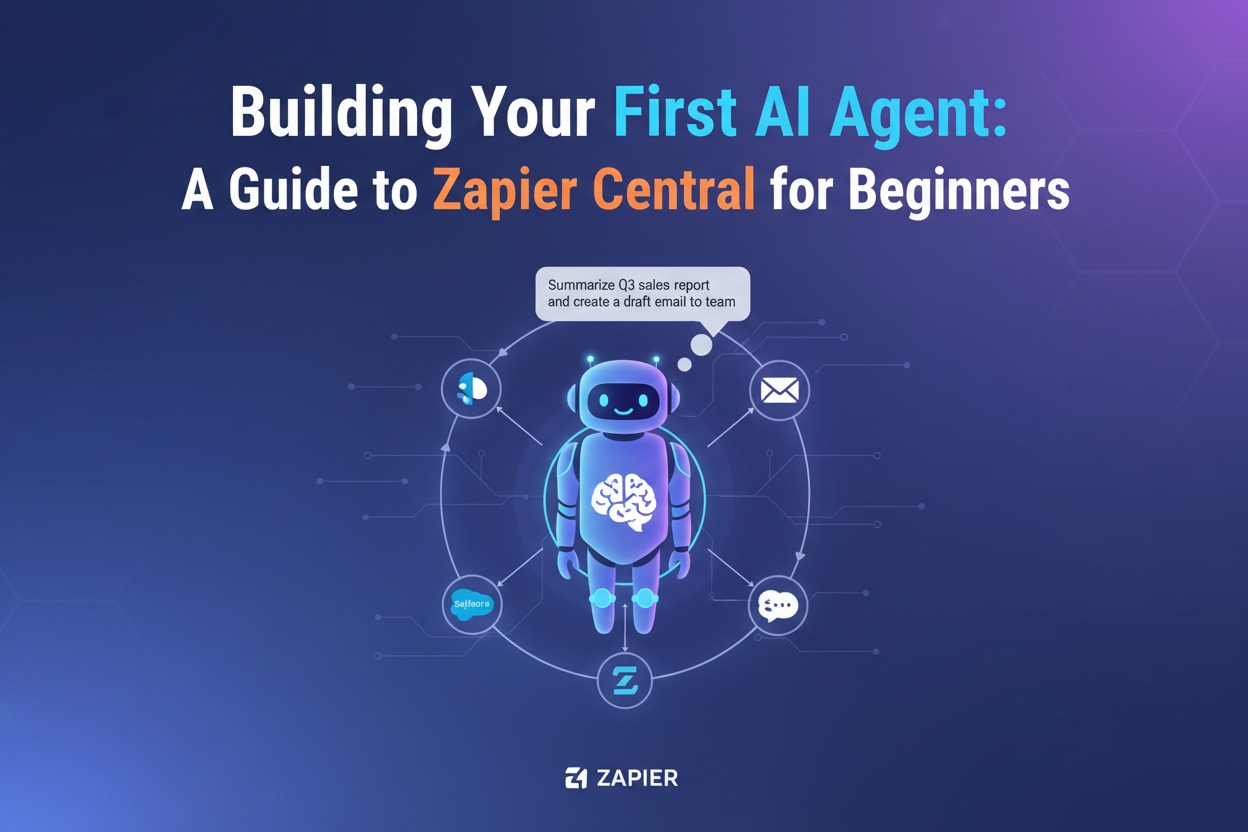
Building Your First AI Agent: A Guide to Zapier Central for Beginners
Learn how to build your first AI agent with Zapier Central in this beginner-friendly guide. Discover no-code automation, persistent memory, and step-by-step workflows to save hours every week.
The AI Revolution That Requires Zero Code
Let me paint a picture you will recognize.
Every Monday morning, you log into Slack. Forty-seven unread messages. A spreadsheet of customer inquiries. Three different project management tools. And somewhere in that digital chaos is the information you actually need to start your week.
Now imagine this instead: An AI agent has already read every relevant Slack message, pulled the action items into a spreadsheet, summarized the week’s priorities, and sent you a clean report—all before your first sip of coffee.
This is not science fiction. This is Zapier Central.
In 2026, AI agents have evolved from passive chatbots into proactive digital teammates that can reason, plan, and execute tasks across thousands of apps—without writing a single line of code. And Zapier Central puts this power in the hands of beginners.
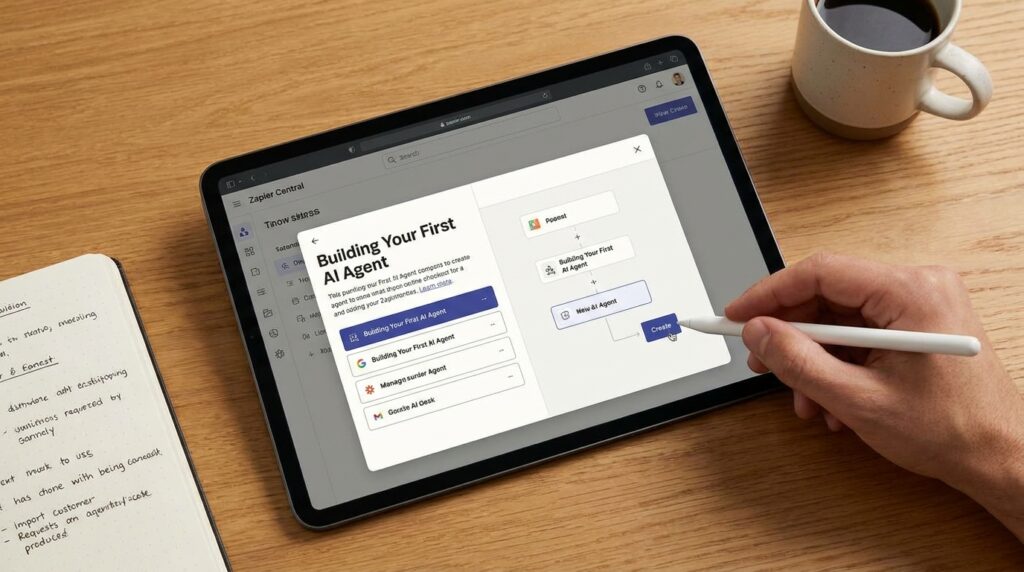
This guide walks you through everything you need to know to build your first AI agent, from understanding what an agent actually is to deploying a working automation that saves you real time.
What Is Zapier Central? (And Why Should You Care?)
Before we build anything, let us clarify what Zapier Central actually is.
Zapier Central is an AI-powered workspace that lets you create intelligent “AI teammates”—autonomous agents that can perform tasks across the 6,000+ apps connected to Zapier.
Think of it as the difference between a to-do list and a personal assistant.
| Classic Zap (Automation) | Zapier Agent (AI Teammate) | |
|---|---|---|
| How it works | You define every step: “When X happens, do Y, then Z” | You set a goal in plain English; the agent figures out the steps |
| Flexibility | Rigid—follows the exact path you build | Adaptive—chooses tools and actions based on context |
| Best for | Predictable, repeatable tasks | Ambiguous tasks requiring judgment across multiple apps |
| Learning | Static—does exactly what you tell it | Persistent memory—learns from past interactions |
Here is the key insight: Classic Zaps are not going away. They are still better for high-volume, predictable tasks where you need rock-solid reliability. Agents shine when the path is unclear—when you need to read an email, decide if it is urgent, look up a customer’s history, draft a response, and then decide whether to send it automatically or loop in a human.
Zapier Central launched in 2024 and has already been adopted by over 50,000 teams. By 2026, it has evolved into the command center for multi-step agentic orchestration within the Zapier ecosystem.
The Three Core Concepts You Need to Understand
Building an agent in Zapier Central revolves around three concepts. Master these, and you can build almost anything.
1. Behaviors (The “When”)
A behavior is what triggers your agent to act. It is the closest cousin to a classic Zap’s trigger.
Examples:
- “When I react to a Slack message with a 📌 emoji”
- “When a new row is added to a Google Sheet”
- “Every weekday at 8:45 AM” (scheduled)
Behaviors tell your agent: Pay attention to this event. When it happens, go to work.
2. Data Sources (The “What”)
Data sources are the knowledge bases your agent can access. This is what makes agents “intelligent”—they are not just moving data; they are understanding it.
What you can connect:
- Google Sheets or Excel files
- Notion databases
- Strategic planning documents
- Meeting notes
- Customer knowledge bases
When you connect a data source, your agent can read, summarize, and reason about that information. It can answer questions like “What action items from last week’s meeting are still open?” or “Summarize what I need to care about for May based on our strategic plan.”
3. Instructions (The “How”)
Instructions are the natural language directions you give your agent. This is where you set the goal.
Weak instruction: “Get my tasks.”
Strong instruction: “Every morning at 8:45 AM, fetch all incomplete tasks from my Asana project, format them into a clean bulleted list, and send me a Slack message. If there are more than 10 tasks, flag the message as ‘High Priority’.”
The more specific your instructions, the better your agent performs.
Step-by-Step: Building Your First Agent
Let us build a practical, useful agent together. We will create a Daily Task Reminder Bot that checks your project management tool and sends you a summary every morning.
This example works with Asana, but the same pattern applies to Todoist, Trello, ClickUp, or any task manager Zapier connects to.
What You Will Need Before Starting
- A Zapier account (free plan works to start)
- A project management tool with tasks (we will use Asana)
- A Slack account (or email) to receive the summary
Step 1: Create Your Agent
Log into Zapier and navigate to Zapier Central (sometimes labeled “Agents” in the navigation).
Click “Create Agent” or “New Agent” .
You will see a screen asking you to describe your agent. For now, you can give it a name like “Daily Task Assistant” and a brief description. If you want to skip the AI-guided setup to learn the manual way, look for a “Skip this step” option.
You will land on an empty agent configuration page. This is your workspace.
Step 2: Add Your Data Source
For this agent, we want it to understand our tasks.
- In the agent configuration screen, find the “Data Sources” section
- Click “Add Data Source”
- Select your task management tool (Asana, Todoist, etc.) and connect your account
- Choose which project or workspace the agent should monitor
- Grant access
The agent can now read your tasks.
Step 3: Create a Behavior (The Trigger)
Now we tell the agent when to work.
- Find the “Behaviors” or “Triggers” section
- Click “Add Behavior”
- Choose “Schedule” as the trigger type
- Set the time: Weekdays at 8:45 AM
Alternatively, you could set it to trigger when you message the bot with a specific phrase like “what is my day looking like?” But for a daily summary, scheduling works perfectly.
Step 4: Write Your Instructions
This is the most important step. Your instructions tell the agent what to do when triggered.
Example instructions:
“Every time this behavior runs, fetch all incomplete tasks from my Asana workspace. For each task, include the task name, due date (if any), and project name. Then, generate a Slack message that:
- Starts with ‘Good morning! Here are your tasks for today:’
- Lists each task as a bullet point
- If a task is overdue, put a red flag emoji (🔴) next to it
- If a task is due today, put a yellow flag emoji (🟡) next to it
- If there are no incomplete tasks, say ‘You have no pending tasks. Enjoy your day!’
- End with ‘Have a productive day!'”
Send this message to the agent. It will interpret your goal and figure out the steps to execute it.
Step 5: Add Tools (Actions)
Your agent needs permission to actually do things—like sending a Slack message.
- In the behavior configuration, look for “Tools” or “Actions”
- Click “Add Tool”
- Select Slack and choose the “Send Message” action
- Connect your Slack account
- Tell the agent which channel or direct message to send to
- Instruct the agent to use the message format you defined in Step 4
You can also use API requests or webhooks if your tool requires custom actions.
Step 6: Test Your Agent
Before you turn it on, test it.
- Look for a “Test” or “Run Now” button
- The agent will execute its instructions using real data from your task manager
- Check the output—did it fetch the right tasks? Format the message correctly?
If something is wrong, adjust your instructions and test again. The agent learns from your feedback.
Step 7: Turn It On
Once the test works, flip the switch to “On” or “Active” .
Your agent is now live. Tomorrow at 8:45 AM, it will run automatically and send you your task summary.
What Makes Agents Different: Persistent Memory and Live Data
The example above works. But the real power of Zapier Central becomes visible when you combine behaviors with live-updating data sources.
Let me share a real-world example from Zapier’s own team.
The problem: Emily, a Zapier employee, volunteers on an Employee Resource Group (ERG). Every month, she spends 30 minutes manually reviewing Slack messages, meeting notes, and a strategic plan to figure out what she needs to do.
The solution: She built an agent.
How it works:
- The agent has access to a Google Sheet containing the ERG’s strategic plan
- A behavior watches Slack: When Emily reacts to a message with a specific emoji (📌), the agent automatically copies that message into a “notes” tab in the spreadsheet
- The agent also has access to that notes tab as a data source
The magic: The data source is not static. Every time Emily uses the emoji, the agent updates the spreadsheet. So when she asks the agent “What do I need to care about for May?”, the agent reads BOTH the original strategic plan AND every Slack message she has flagged since then.
The result? A 30-minute manual task becomes a 2-minute conversation with an AI agent.
This is the pattern to emulate: Behaviors feed data sources. Data sources make agents smarter. Smarter agents save more time.
Ready-Made Templates to Get You Started
If building from scratch feels intimidating, Zapier Central comes with pre-built templates.
| Template | What It Does |
|---|---|
| Lead Enrichment Agent | Automates prospect research and updates your CRM |
| Sales Outreach Agent | Creates personalized emails based on LinkedIn profiles |
| Support Email Agent | Handles initial customer service responses using your knowledge base |
| Meeting Prep Agent | Automatically generates briefing documents for upcoming meetings |
These templates are fully customizable. Start with a template, then tweak the instructions to match your specific workflow.
Pricing: What You Need to Know
Zapier operates on a tiered pricing model. As of 2026:
| Plan | Monthly Price (billed annually) | Tasks/Month | Best For |
|---|---|---|---|
| Free | $0 | 100 | Testing the basics, simple 2-step Zaps |
| Professional | $29.99 | 750 | Individual power users, premium apps |
| Team | $103.50 | 2,000 | Teams with shared workflows, audit logs |
| Enterprise | Custom | Custom | Large organizations, advanced security |
Important: One “task” is one action executed by the agent. If your agent fetches tasks from Asana (1 task), sends a Slack message (2nd task), and updates a spreadsheet (3rd task), that is three tasks against your monthly limit.
The free plan is fine for learning and testing simple agents. For daily production use, the Professional plan is the minimum.
Classic Zap vs. AI Agent: Which One Should You Use?
This is the most common question beginners ask. Here is a simple decision rule:
Use a classic Zap when:
- The steps are predictable and never change
- You need high-volume, rock-solid reliability
- Every input follows the same format (e.g., form submissions)
- Example: “When someone fills out my contact form, add them to my email list”
Use an AI agent when:
- The inputs are unstructured (emails, chat messages, documents)
- The correct action depends on judgment or nuance
- You would otherwise build a dozen conditional branches
- Example: “Read customer support emails, figure out if they are angry or happy, then either escalate to a human or draft a reply”
The best pattern: Use both. Let an agent gather context and propose actions, then hand off final execution to trust-tested Zaps.
Common Beginner Mistakes (And How to Avoid Them)
Mistake 1: Vague Instructions
Bad: “Send me my tasks.”
Good: “Every morning at 8:45 AM, fetch all incomplete tasks from my ‘Work’ project in Asana, format them as a bulleted list, and send them to me in Slack. If there are more than 10 tasks, add a note saying ‘High workload today.'”
Agents are smart, but they are not mind readers. Specificity is your friend.
Mistake 2: Giving Too Much Access Too Soon
Start small. Give your agent access to one spreadsheet, not your entire Google Drive. One project, not your whole task manager. You can always add more later.
Mistake 3: Skipping the Human-in-the-Loop
For sensitive actions—sending emails to customers, updating financial data, approving refunds—always add a human approval step. Zapier Central supports this natively.
Mistake 4: Expecting Perfection on the First Try
Your first agent will not be perfect. That is fine. Test it. See where it fails. Adjust your instructions. Test again. Agents improve with iteration.
The Future: Where Zapier Central Is Headed
Zapier Central is evolving rapidly. By 2026, the platform offers:
Persistent Memory: Agents learn from past interactions and refine their decision-making over time.
Agent Monitoring: Real-time visibility into an agent’s reasoning chain—you can see exactly why it made the decisions it did.
Zapier MCP (Model Context Protocol): Agents can discover and use actions from external services as if they were native tools.
Chrome Extension: Your agent can follow you across the web, providing contextual help wherever you work.
The ultimate vision is clear: AI agents that work alongside you, handling the cognitive overhead of daily work so you can focus on what actually matters.
Getting Started Today
You do not need to automate everything at once.
Week 1: Create a free Zapier account. Build one simple agent—the daily task reminder from this guide is perfect.
Week 2: Identify one repetitive task that annoys you. Maybe it is flagging important emails. Maybe it is logging customer feedback. Build an agent to handle it.
Week 3: Add a behavior that feeds a data source automatically (like the emoji-to-spreadsheet pattern). Watch your agent get smarter over time.
Week 4: Upgrade to a paid plan if you are hitting task limits. Scale your agents to cover more workflows.
The goal is not to replace yourself with AI. The goal is to stop doing work that software can do, so you can focus on work that only you can do.
Frequently Asked Questions
Q: Do I need coding skills to use Zapier Central?
A: No. Zapier Central is a no-code platform. You build agents using natural language instructions and visual tools.
Q: What is the difference between Zapier Central and Zapier Agents?
A: Zapier Central was the original name. The product is now often called “Zapier Agents” or “Zapier Central/Agents.” They refer to the same core capability.
Q: Can my agent access live data?
A: Yes. Agents can connect to live data sources including Google Sheets, CRMs, project management tools, and thousands of other apps.
Q: How many tasks can I run on the free plan?
A: The free plan includes 100 tasks per month, but limits you to simple automations.
Q: Is Zapier Central secure for business use?
A: Zapier provides audit logs, role-based permissions, and SOC 2 compliance. For sensitive workflows, you can add human approval steps as guardrails.
Q: Can my agent learn and improve over time?
A: Yes. Zapier Central agents have persistent memory, meaning they can learn from past interactions and refine their decision-making.