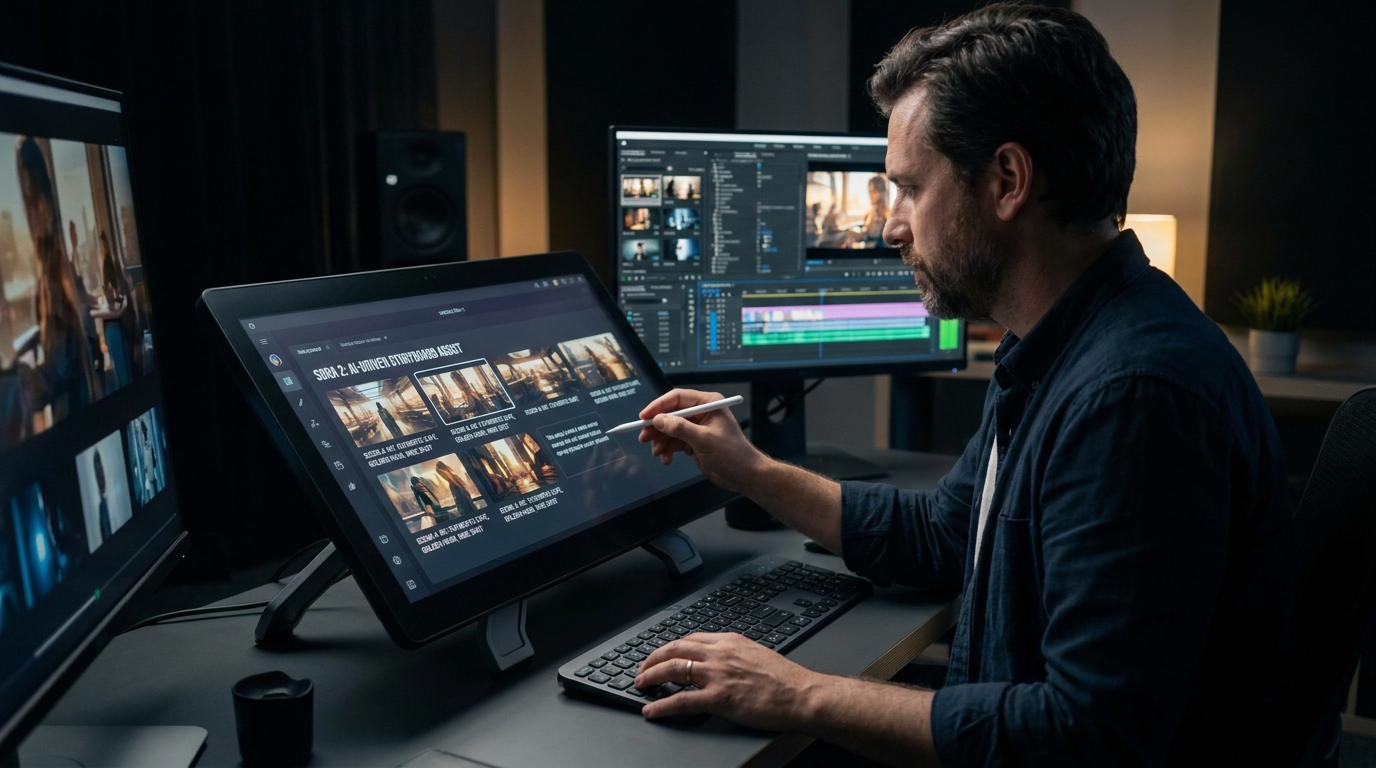
AI-Driven Cinematography: How to Use Sora 2 for Professional Storyboarding
Discover how to use Sora 2’s Storyboard mode for professional AI cinematography. Learn prompt engineering, camera control techniques, and post-production workflows to create consistent, cinematic video sequences.
The Director’s Dilemma: AI Video Without Control
You have a vision. A sweeping drone shot over a cyberpunk city. A character’s subtle glance that conveys an entire backstory. A product reveal with perfect golden-hour lighting.
Then you type your prompt into an AI video generator, hit “create,” and wait.
What comes back is… wrong. The camera shakes like an earthquake. The character’s face morphs between frames. The lighting jumps from warm sunset to cold fluorescent mid-scene.
For months, this was the reality of AI video generation. Powerful, yes. Controllable, no.
Sora 2 changes everything. With its new Storyboard mode, OpenAI has given creators something unprecedented: frame-by-frame control over AI-generated cinematography .
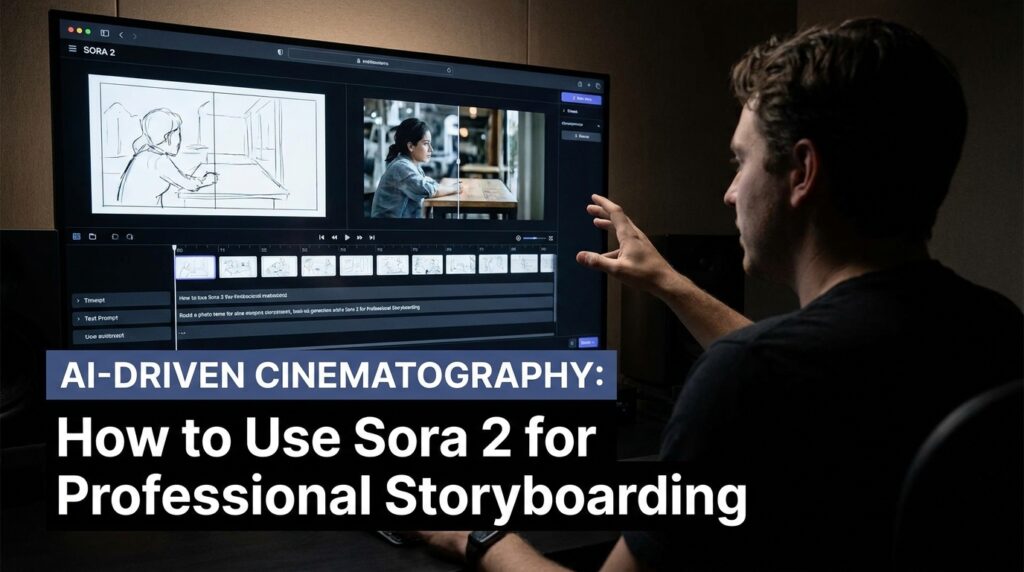
This guide teaches you how to use Sora 2 like a professional cinematographer—planning shots, controlling camera movement, maintaining consistency, and building sequences that actually tell a story.
What Is Sora 2 Storyboard Mode?
In traditional filmmaking, a storyboard is a sequence of drawings representing the shots planned for a video. It is the blueprint that ensures everyone—director, cinematographer, editor—shares the same vision .
Sora 2’s Storyboard mode brings this concept into AI video generation. Instead of feeding the AI a single prompt and hoping for the best, you create a timeline of scenes, each with its own prompt, camera instructions, and reference images .
Key capabilities of Sora 2 Storyboard mode include:
- Scene-by-scene creation: Plan your video frame by frame, not as one monolithic generation .
- Reference image support: Upload images or short video clips to guide each scene’s composition .
- Narrative continuity: The AI maintains visual and logical flow from one scene to the next .
- Cameo feature: Insert yourself or specific characters into scenes with consistent identity .
Technical Specifications
| User Type | Default Duration | Maximum Duration | Platforms |
|---|---|---|---|
| Free Users | 10 seconds | 15 seconds | Web |
| Pro Users | 10 seconds | 25 seconds | Web |
Note: The API preview supports resolutions up to 1080p and durations up to 20 seconds .
Why Storyboarding Matters for AI Video
Without a storyboard, you are gambling. The AI fills in the gaps you leave open, and those gaps are often larger than you think .
The three biggest problems storyboarding solves:
1. Identity Consistency
Characters change appearance between frames when the AI has no consistent reference. Sora 2’s storyboard lets you lock in character traits—”red beanie, denim jacket, scuffed white Vans, small scar above left eyebrow”—and carry them across scenes .
2. Camera Coherence
A single prompt like “cinematic shot of a street” gives the AI no direction about camera movement. One frame might be a static wide shot; the next, a shaky handheld close-up. Storyboarding forces you to specify framing, motion, and lens for every moment .
3. Lighting Continuity
Nothing breaks immersion like a lighting shift between cuts. When you storyboard, you define the lighting recipe once and apply it across scenes: “soft window light with warm lamp fill, cool rim from hallway” .
The Professional’s Workflow: From Concept to Clip
Treat Sora 2 like a high-end camera system. That means planning, generating multiple takes, and running a disciplined post-production pipeline .
Phase 1: Pre-Production (Don’t Skip This)
Before you open Sora, answer these questions for each scene:
Story beats: Write 3–5 micro-scenes. Each beat needs a purpose—emotion, action, or information .
Shot list: For each beat, specify lens, camera move, composition, lighting, and motion intent. Example: “24mm low-angle dolly-in; backlight at golden hour; steady gimbal; soft haze; subject crosses frame left to right” .
Visual references: Collect 2–3 reference descriptors: color palette, lighting direction, and style cues. “Dust motes in sunbeams.” “Teal and orange grading.” “Subtle film grain.”
Audio plan: Decide on ambience, music vibe, and dialogue lines. Keep it simple for first attempts—one voice at a time .
Acceptance criteria: Define technical specs (aspect ratio, frame rate, color space), narrative tone, and realism thresholds before generating .
Phase 2: Prompt Engineering for Cinematography
Sora 2 prompts work best when structured like storyboard directions . Use this five-part framework:
| Component | What to Include | Example |
|---|---|---|
| Subject + Action | Who and what they do, with explicit timing | “Cyclist pedals three times, brakes, and stops at crosswalk” |
| Camera + Movement | Framing, lens, motion | “Wide shot, low angle, tracking left to right” |
| Setting + Time | Environment and lighting conditions | “Rain-soaked Tokyo street, blue hour” |
| Lighting Quality | Source, direction, mood | “Soft window light with warm lamp fill, cool rim” |
| Style + Technical | Aesthetic references, resolution | “Shot on Arri Alexa, anamorphic lens, 8k” |
The Before vs. After difference :
| Weak Prompt | Strong Prompt |
|---|---|
| “A beautiful street at night” | “Wet asphalt, zebra crosswalk, neon signs reflecting in puddles” |
| “Person moves quickly” | “Cyclist pedals three times, brakes, and stops at crosswalk” |
| “Cinematic look” | “Anamorphic 2.0x lens, shallow DOF, volumetric light” |
| “Actor walks across the room” | “Actor takes four steps to the window, pauses, and pulls the curtain in the final second” |
Phase 3: Using the Storyboard Interface
Step 1 — Access Storyboard Mode
Open the Sora website and select “Storyboard” from the composer options .
Step 2 — Create Your Scenes
You will see empty scene slots (up to 5 in the standard interface). For each slot :
- Click the slot to select it
- Enter a detailed prompt describing the scene (use the five-part structure above)
- Optionally upload a reference image or short clip
- Click “Create Image” to generate a preview
- Repeat for additional scenes
Step 3 — Refine and Reorder
Drag scenes to reorder them. Regenerate any scene that doesn’t match your vision. Add or remove scenes as needed .
Step 4 — Generate Video
Click “Generate Video from Storyboard.” The AI processes your sequence, maintaining consistency across scenes .
Phase 4: Quality Control Checklist
Before accepting a generation, review against these five dimensions :
Prompt adherence: Did you get the subject, action, camera, mood, and timing you asked for? If not, tighten wording.
Physics realism: Any impossible motion, odd collisions, or teleporting objects? Simplify action and camera movement if yes.
Temporal consistency: Watch for flicker, lighting jumps, or disappearing objects. Consider shorter duration and clearer continuity cues.
Identity stability: Do wardrobe and key traits remain constant? Add or repeat visual anchors.
Audio/lip-sync (if applicable): Does dialogue land at the right moment? Shorten lines and isolate them from overlapping sounds.
Phase 5: Post-Production Polish
Even great Sora 2 generations benefit from finishing work :
In your video editor (Premiere Pro, DaVinci Resolve, Final Cut, CapCut):
- Trim: Cut to the strongest 8–15 seconds; remove weak frames at start and end
- Stabilize: Use Warp Stabilizer (Premiere) or Stabilizer (Resolve) for minor shakes
- Deflicker: Apply deflicker filters if lighting pulses between frames
- Color: Gentle contrast work, protect highlights, unify color temperature across shots
- Audio: EQ dialogue, add subtle ambience bed, target -12 to -8 LUFS for short-form platforms
Export presets (conservative and widely compatible):
| Setting | Value |
|---|---|
| Container | MP4 |
| Codec | H.264 |
| Resolution | 1080 × 1920 (vertical) or 1920 × 1080 (horizontal) |
| Frame rate | 24–60 fps (match source) |
| Audio | AAC stereo, 44.1 or 48 kHz, 192–256 kbps |
Advanced Techniques: Thinking Like a Cinematographer
Camera Movement Vocabulary
Sora 2 understands specific camera motion terms. Use them :
| Term | Effect |
|---|---|
| Tracking shot | Follows subject laterally |
| Dolly zoom | Simultaneous zoom and dolly (the “Vertigo effect”) |
| Crane shot | Vertical camera movement |
| Handheld | Documentary-style texture |
| Steadicam | Smooth cinematic quality |
| Slow tilt | Gradual vertical pan |
| Locked off | No camera movement (tripod) |
Depth of Field Control
Specify exactly what is in focus :
- Shallow depth of field: “Sharp on subject, blurred background” — directs attention to character
- Deep focus: “Foreground and background elements sharp” — emphasizes environment and context
Lighting Recipes for Different Moods
| Mood | Lighting Prompt |
|---|---|
| Warm/Intimate | “Soft key light from window, warm fill from fireplace, amber tones” |
| Dramatic/Tense | “Single hard light from below, cool edges, deep shadows, teal cast” |
| Professional/Clean | “Soft diffused overhead lighting, neutral fill, no harsh shadows” |
| Nostalgic | “Golden hour backlight, subtle haze, warm saturation, soft rim” |
| Documentary | “Natural available light, handheld bounce, practical sources only” |
Handling Dialogue and Lip-Sync
Sora 2 supports audio-synchronized video. For reliable lip-sync :
- Use one voice at a time — multiple speakers confuse the model
- Keep lines short — 5–8 words maximum
- Specify timing: “At 00:05 he says, ‘Almost there,’ softly”
- Lower ambient sound in the prompt to reduce competition with dialogue
Example dialogue prompt:
“85mm portrait lens, shallow depth, eye-level tripod shot. Neutral key with soft fill. At 00:03 she says, ‘I remember this place,’ with quiet nostalgia. Subtle room tone. Exclude: mouth artifacts, frozen expressions, audio desync.”
Troubleshooting Common Problems
Based on real-world testing and community experience :
| Problem | Likely Cause | Solution |
|---|---|---|
| Camera too chaotic | No motion constraints | Add “stable horizon, 180-degree shutter, no jitter” |
| Identity drift | Too few visual anchors | Add 3–4 distinctive traits; repeat them |
| Physics glitches | Complex action | Simplify to one clear movement; describe physics explicitly |
| Flicker/lighting pops | Rapid lighting changes | Request “consistent lighting throughout”; avoid strobing effects |
| Lip-sync drift | Overlapping audio cues | Shorten dialogue; isolate from SFX |
| Objects disappearing | Scene too complex | Reduce moving elements; shorten duration to 10–12 seconds |
The Five-Template Toolkit
Based on proven community patterns, here are five reliable prompt templates for common use cases :
1. Product Showcase (No Text Issues)
[Product type] rotating slowly on [surface], camera orbits 360 degrees maintaining focus, [lighting quality] from [direction] creating [specific effect] on [material surfaces], ultra-clean minimalist aesthetic, [background treatment], shot on Arri Alexa, 8k resolution.Example: “Luxury watch rotating slowly on white marble pedestal, camera orbits 360 degrees maintaining sharp focus on dial, dramatic side lighting from camera left creating specular highlights on polished metal and crystal, pure black background fading to soft gradient, shot on Arri Alexa, premium product photography style, 8k.”
2. Urban Scene (Moderation-Safe)
[Character with specific visual details] [action] in [simplified location], [single camera movement] over [duration], during [time of day with lighting], [atmosphere descriptor], [style reference].Example: “Woman in burgundy coat and gray scarf walking purposefully down rain-slicked city sidewalk, smooth tracking shot following from side over 12 seconds, during blue hour with streetlights creating warm pools of light, contemplative urban atmosphere, documentary realism style shot on 35mm film.”
3. Nature Scene (Physics-Reliable)
[Wildlife or natural element] [simple action] in [environment], [slow camera movement], during [time/lighting], [weather element], [documentary style reference].Example: “Red fox trotting along forest path through fallen autumn leaves, slow tracking shot following at ground level, during golden hour with soft directional sunlight filtering through pine trees, light mist hovering at ground level, natural documentary cinematography style, 8k.”
4. Interior Character Moment (Facial Distortion Minimized)
Medium shot of [specific character] [simple static or minimal action], in [simplified interior], [specific lighting from direction], [mood], camera static with slight slow push-in, [style reference].Example: “Medium shot of elderly woman with silver hair pulling back sitting at wooden table arranging flowers in simple glass vase, hands performing gentle placement motions, in sunlit cottage kitchen, soft natural morning light from camera right, peaceful contemplative mood, camera static with slight slow push-in over 10 seconds, intimate documentary style.”
5. Architectural Establishing Shot (Zero Human Complications)
[Camera movement] of [specific architecture type] during [time/lighting transition], [environmental context], [atmosphere], [technical style reference].Example: “Slow crane shot ascending from ground level to full height of modern glass office tower during blue hour, building facade reflecting twilight sky transitioning from deep blue to purple, city traffic lights beginning to illuminate streets below, architectural photography style emphasizing vertical scale and geometric patterns, shot on Arri Alexa with anamorphic lens characteristics, 8k.”
Limitations to Keep in Mind
Sora 2 Storyboard mode is powerful but not perfect :
Duration constraint: Even Pro users are capped at 25 seconds per generation. Longer sequences require stitching multiple clips in post-production.
Unplanned details: Large gaps between scene notes can lead the AI to fill in missing parts on its own—sometimes with unexpected results.
Limited fine-tuning: Sora does not offer a frame-by-frame timeline. If one part feels off, you often need to revise the prompt and regenerate the entire sequence.
API access limitations: The API is currently in preview for Azure AI Foundry users, not broadly available .
The Future: From Storyboard to Finished Film
Sora 2 represents a fundamental shift in AI video creation. It is no longer about generating random clips and hoping for magic. It is about directing—planning shots, controlling cinematography, and building sequences with intention.
The workflow is becoming professionalized:
- Pre-production: Storyboard, shot list, lighting plan
- Generation: Scene-by-scene creation with Sora 2
- Quality control: Frame-accurate review against acceptance criteria
- Post-production: Stabilization, color grading, audio polish
- Delivery: Export for platform-specific requirements
As OpenAI continues to develop Sora, expect longer durations, higher resolutions, and finer control over individual frames . The API will eventually open to more users, enabling automated pipelines and integration with existing production tools .
Getting Started Today
You do not need to be a professional cinematographer to start using Sora 2 Storyboard mode. But thinking like one will dramatically improve your results.
Start small:
- Pick one simple scene—a character walking, a product rotating, a landscape reveal
- Write a prompt using the five-part structure
- Generate 3–5 variants with different seeds
- Compare results against your quality checklist
- Iterate with targeted changes (one at a time)
Scale up:
Once you have a single scene working, add a second. Use the storyboard to connect them. Add camera movement. Add lighting complexity. Add dialogue.
The goal is not to replace traditional filmmaking. It is to add a powerful new tool to your creative arsenal—one that turns imagination into moving images faster than ever before.
Frequently Asked Questions
Q: Is Sora 2 available to everyone?
A: Access is currently limited. OpenAI provides access through the Sora app (web) and Azure AI Foundry for API preview .
Q: How long can Sora 2 videos be?
A: Up to 25 seconds for Pro users in the web app, 20 seconds in the API preview .
Q: Does Sora 2 generate audio?
A: Yes, Sora 2 generates synchronized audio including dialogue, ambience, and sound effects .
Q: Can I use my own images as references?
A: Yes. Storyboard mode supports uploading custom images or short clips to guide each scene .
Q: How many scenes can I create in a storyboard?
A: The standard interface supports up to 5 scenes, but you can generate multiple storyboards and stitch them together .