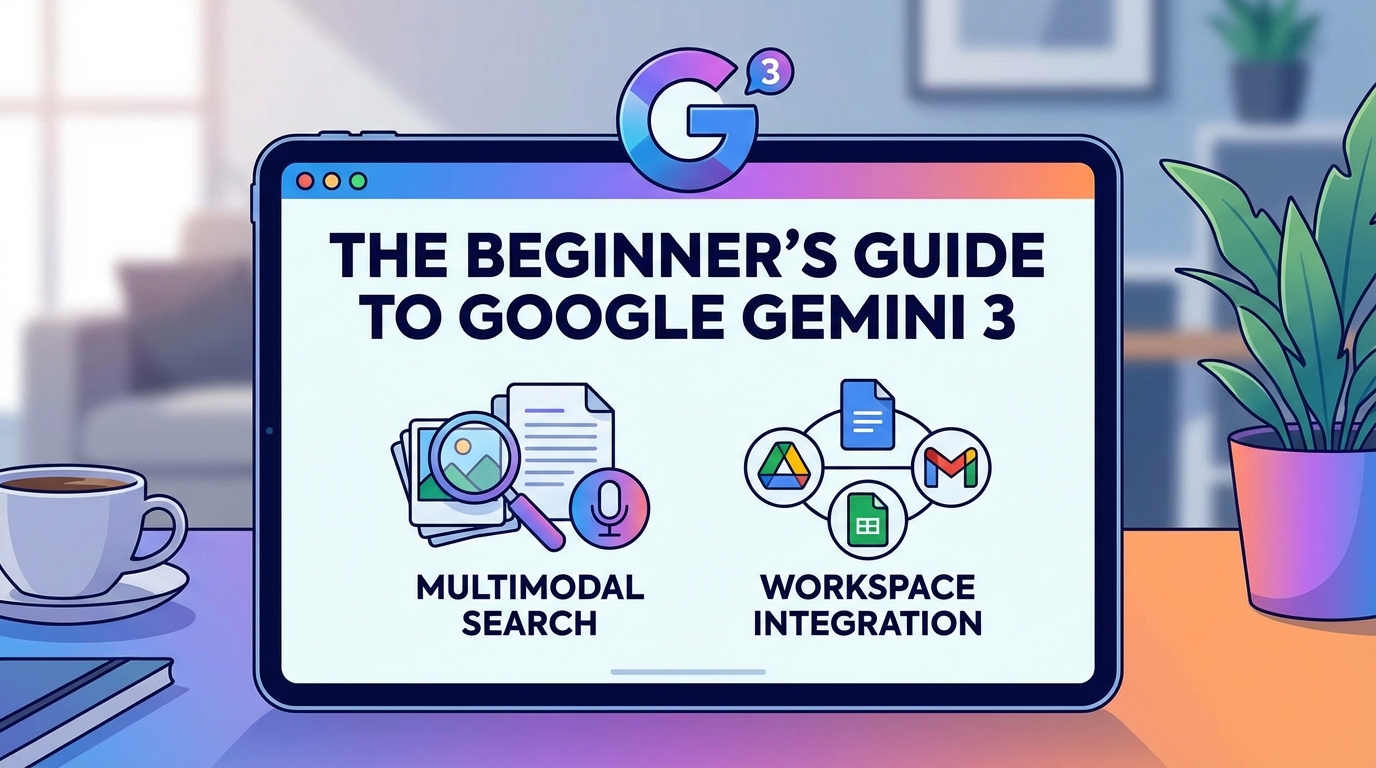
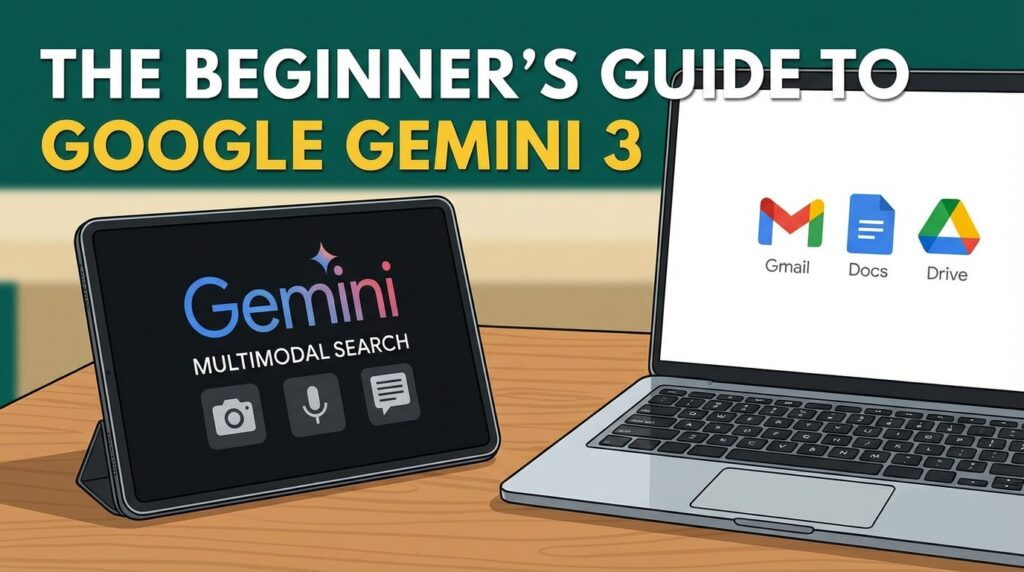
The Beginner’s Guide to Google Gemini 3: Multimodal Search and Workspace Integration
The Beginner’s Guide to Google Gemini 3: The artificial intelligence landscape shifted dramatically in late 2025. While much of the world focused on ChatGPT and Claude, Google quietly released something fundamentally different: Gemini 3, a model family built from the ground up for a multimodal world .
Unlike models that bolt vision onto language as an afterthought, Gemini 3 was designed from the start to understand text, images, video, and audio simultaneously . The result is something that feels less like a chatbot and more like a true AI assistant—one that can watch a video, read a document, analyze a spreadsheet, and reason across all of them in a single conversation.
By March 2026, Gemini 3 had reached over 800 million devices through Samsung partnerships alone, with adoption accelerating across Google’s ecosystem . This guide will walk you through everything you need to know to start using Gemini 3, whether you’re a curious beginner or a developer ready to build.
What Makes Gemini 3 Different?
Before diving into how to use Gemini 3, it’s worth understanding what sets it apart from the competition.
Native Multimodality
Most AI models are text-first. They generate text, and image recognition is handled by a separate system bolted on top. Gemini 3 is different—it was trained as a native multimodal model from day one .
This means it doesn’t just “see” images; it understands how images relate to text, how video frames connect over time, and how audio tracks align with visual content. In practical terms, this enables capabilities that feel almost magical:
- Video understanding at 60 frames per second—Gemini can analyze real-time video streams, making it suitable for everything from security monitoring to game NPC behavior
- Massive context windows—1 million tokens standard (about 750,000 words or 3,000 pages), with Pro models handling 2 million tokens—five times GPT-5.2’s 400K context
- Cross-modal reasoning—You can upload a product photo and its PDF spec sheet, then ask Gemini to identify discrepancies between the visual design and technical documentation
The Gemini 3 Family
Google released multiple variants of Gemini 3 to serve different use cases :
| Model | Best For | Context Window | Key Feature |
|---|---|---|---|
| Gemini 3 Flash | Speed-sensitive tasks, everyday use | 1M tokens | 3x faster than previous generation; 78% on SWE-bench |
| Gemini 3 Pro | Complex reasoning, agentic workflows | 1M tokens | Deep Think mode for 10-15 step logical reasoning |
| Gemini 3.1 Pro | Latest intelligence | 1M tokens | Enhanced reasoning across modalities |
| Gemini 3.1 Flash-Lite | Cost-optimized volume work | 1M tokens | Most economical option for high-volume tasks |
| Nano Banana Pro | Image generation | 65K tokens | Highest quality image generation |
Performance Benchmarks
The numbers tell a compelling story. Gemini 3 Flash achieves a 78% score on SWE-bench Verified (real-world coding tasks), surpassing its own Pro version and approaching GPT-5.2’s 80% . On GPQA Diamond (doctoral-level science reasoning), it hits 90.4%—comparable to the most advanced frontier models .
Perhaps most impressive is the speed. With response times under one second for many queries, Gemini 3 Flash achieves what Google calls “search-engine level latency” .
How to Access Gemini 3
Google provides multiple ways to access Gemini 3, depending on your needs and technical comfort level.
Option 1: Google AI Studio (Free, No Code Required)
For beginners and developers testing prompts, Google AI Studio is the best starting point .
How to get started:
- Visit aistudio.google.com and sign in with your Google account
- In the model selector, choose “gemini-3-flash-preview” or “gemini-3-pro-preview”
- Start typing—you can upload images, PDFs, or videos directly in the chat interface
What you can do in AI Studio:
- Test prompts with different thinking levels (low/medium/high)
- Upload and analyze files up to 1M tokens
- Generate code in Python, JavaScript, or other languages
- Export your working code with one click for integration into your projects
The platform also includes a “Get code” button that generates production-ready API calls based on your exact prompt and settings . This is invaluable for developers moving from testing to implementation.
Option 2: Gemini Mobile App (For Everyday Use)
If you want Gemini on your phone, the official Gemini app is available for both Android and iOS .
Android: Many Pixel and Samsung devices now have Gemini built in—long-press the power button or home button to activate. Otherwise, download from Google Play.
iOS: Search “Gemini” in the App Store, or access through the Google App.
Mobile-exclusive features:
- Voice input for hands-free operation
- Camera integration for real-time visual recognition
- System-level shortcuts for quick access
- Integration with Gmail, Google Maps, and other apps
Option 3: Google Workspace Integration (For Teams)
If your organization uses Google Workspace, Gemini 3 can work directly within Gmail, Docs, Sheets, and Slides .
What’s available:
- Gmail: Smart compose, quick replies, email summarization
- Docs: Document continuation, rewriting, formatting assistance
- Sheets: Data analysis, formula generation, chart recommendations
- Slides: Content generation, layout suggestions
To access these features, you’ll need a Workspace subscription (starting at $6-18 per user per month) plus the Gemini add-on ($20-30 per user per month for enterprise features) .
Option 4: API Access (For Developers)
For building applications, the Gemini API provides programmatic access. You can use Google’s official SDKs or third-party providers like 88API and APIYI for simplified billing and OpenAI-compatible endpoints .
Google’s official SDK:
from google import genai

client = genai.Client()

response = client.models.generate_content(
    model="gemini-3-flash-preview",
    contents="Explain quantum computing in simple terms",
)

print(response.text)
Using an OpenAI-compatible endpoint (with services like 88API or APIYI):
from openai import OpenAI

client = OpenAI(
    api_key="your-api-key",
    base_url="https://api.88api.chat/v1"  # or similar
)

response = client.chat.completions.create(
    model="gemini-3-flash",
    messages=[{"role": "user", "content": "Hello!"}]
)
API pricing is usage-based: Gemini 3 Flash costs approximately $0.50 per 1 million input tokens and $3 per 1 million output tokens, making it significantly cheaper than competitors like Claude Opus .
Getting Started: Your First Gemini 3 Interactions
Let’s walk through some practical examples to demonstrate what Gemini 3 can do.
Basic Text Interaction
The simplest way to start is with text prompts. But Gemini 3’s new “thinking_level” parameter gives you control over how deeply the model reasons :
| Thinking Level | Best For | Speed |
|---|---|---|
| Low | Simple instructions, structured data extraction | Fastest |
| Medium | Balanced reasoning for most tasks | Moderate |
| High | Complex problems, strategic analysis | Slowest but most thoughtful |
If you don’t specify a level, Gemini 3 defaults to “high”—prioritizing quality over speed .
Working with Images
Upload an image to AI Studio or the mobile app and ask questions about it. Gemini 3 can:
- Extract text from screenshots or photos
- Identify objects, people, and scenes
- Analyze charts and diagrams
- Compare multiple images
For best results, use the media_resolution parameter to control detail level. “High” resolution (1,120 tokens per image) is recommended for most image analysis, while “medium” works well for documents .
Analyzing Videos
This is where Gemini 3 truly shines. You can upload video files or provide streaming URLs for real-time analysis .
Example use case: Video content moderation
response = client.chat.completions.create(
    model="gemini-3-flash",
    messages=[
        {
            "role": "user",
            "content": [
                {"type": "text", "text": "Analyze this video for: 1) Main scenes and people 2) Key actions 3) Sensitive content"},
                {"type": "video", "video": "data:video/mp4;base64,..."}
            ]
        }
    ]
)
Gemini 3 supports up to 10 videos per request, each up to 10 minutes long, with 60 FPS processing for real-time applications .
Processing Long Documents
With a 1 million token context window, Gemini 3 can analyze entire books, codebases, or extensive research papers in one go.
Upload a PDF or text file and ask Gemini to:
- Summarize key points
- Extract specific information
- Compare sections
- Answer questions about the content
For documents with complex formatting, use media_resolution_medium for optimal OCR results .
Advanced: Workspace Studio and AI Agents
For users ready to go beyond simple queries, Google Workspace Studio (formerly Workspace Flows) enables creating automated AI agents that work across Google’s productivity suite .
What Is Workspace Studio?
Workspace Studio lets you build AI agents using natural language—no coding required . These agents can:
- Monitor your Gmail for specific types of messages
- Draft responses based on your writing style
- Extract information from emails and attachments
- Update spreadsheets or documents automatically
- Send notifications in Google Chat
Example agent prompt:
“If an email contains a question for me, label the email as ‘To respond’ and ping me in Chat.”
Gemini 3 determines which incoming emails contain actual questions, then executes the automation .
Building AI “Employees” with Gemini CLI
For more technical users, the Gemini CLI enables creating what developers call “AI employees”—automated agents that perform specific jobs .
The approach:
- Write a “Standard Operating Procedure” as a markdown file
- Feed it to Gemini 3 Pro to generate instructions
- Use Gemini 3 Flash as the “worker bee” to execute tasks
- Run multiple agents in parallel for scale
One developer demonstrated using this method to research potential customers across multiple cities simultaneously, with agents running in parallel to complete hours of work in minutes .
Model Context Protocol (MCP) Integration
Advanced users can connect Gemini to MCP servers, enabling the AI to directly interact with external tools and data sources . This allows for:
- Reading and writing across Google Workspace
- Searching local documents with RAG (Retrieval-Augmented Generation)
- Executing custom scripts
- Integrating with APIs and services
Best Practices for Optimal Results
Google’s research team has shared specific guidance for getting the most from Gemini 3 .
1. Keep Temperature at 1.0
For all Gemini 3 models, Google strongly recommends keeping the temperature parameter at its default value of 1.0 . Unlike previous models where tuning temperature controlled creativity versus determinism, Gemini 3’s reasoning capabilities are optimized for this default. Changing it may lead to unexpected behavior, particularly in complex mathematical or reasoning tasks .
2. Use System Instructions for Role Definition
Place behavioral constraints and role definitions in the System Instruction or at the very top of the prompt . This anchors the model’s reasoning process and improves consistency.
Example:
“You are a professional Python developer. Provide code with detailed comments. Explain trade-offs in your approach.”
3. Provide Few-Shot Examples
When you need consistent formatting, include examples in your prompt. Gemini 3 performs better when it sees the pattern you want.
4. Place Instructions After Long Context
When working with very large inputs (books, codebases, long videos), place your specific instructions at the end of the prompt, after the data context . This prevents the model from losing track of your goals after processing extensive content.
5. Be Explicit About Output Format
Gemini 3 is less verbose by default and prefers direct, efficient answers. If you need detailed or conversational responses, ask explicitly .
Common Use Cases
For Content Creators
Upload a video of your raw footage, and Gemini can:
- Generate timestamps and chapter markers
- Create SEO-optimized titles and descriptions
- Identify key moments worth highlighting
For Developers
With a 78% SWE-bench score, Gemini 3 Flash excels at:
- Writing and debugging code
- Explaining complex codebases
- Generating tests and documentation
- Converting between programming languages
For Researchers
Upload papers, data visualizations, and notes simultaneously. Gemini can:
- Summarize findings across multiple papers
- Identify contradictions or gaps
- Suggest follow-up questions or experiments
For Business Teams
Using Workspace Studio, create agents that:
- Route customer inquiries to the right people
- Extract action items from meeting notes
- Generate weekly reports from spreadsheet data
- Draft emails based on previous correspondence
The Bottom Line
Gemini 3 represents a fundamental shift in how AI can work with information. By handling text, images, video, and audio natively, it opens possibilities that text-only models simply can’t match.
The best part? You can start using it today, for free, through Google AI Studio. Upload a video, ask a question, and see what happens. You might be surprised by what it understands.
Whether you’re a curious beginner exploring AI for the first time or a developer building the next generation of applications, Gemini 3 provides capabilities that were science fiction just a year ago. The tools are available. The documentation is ready. The only question is: what will you build?