How to Connect ChatGPT to Google Drive for Instant Data Analysis
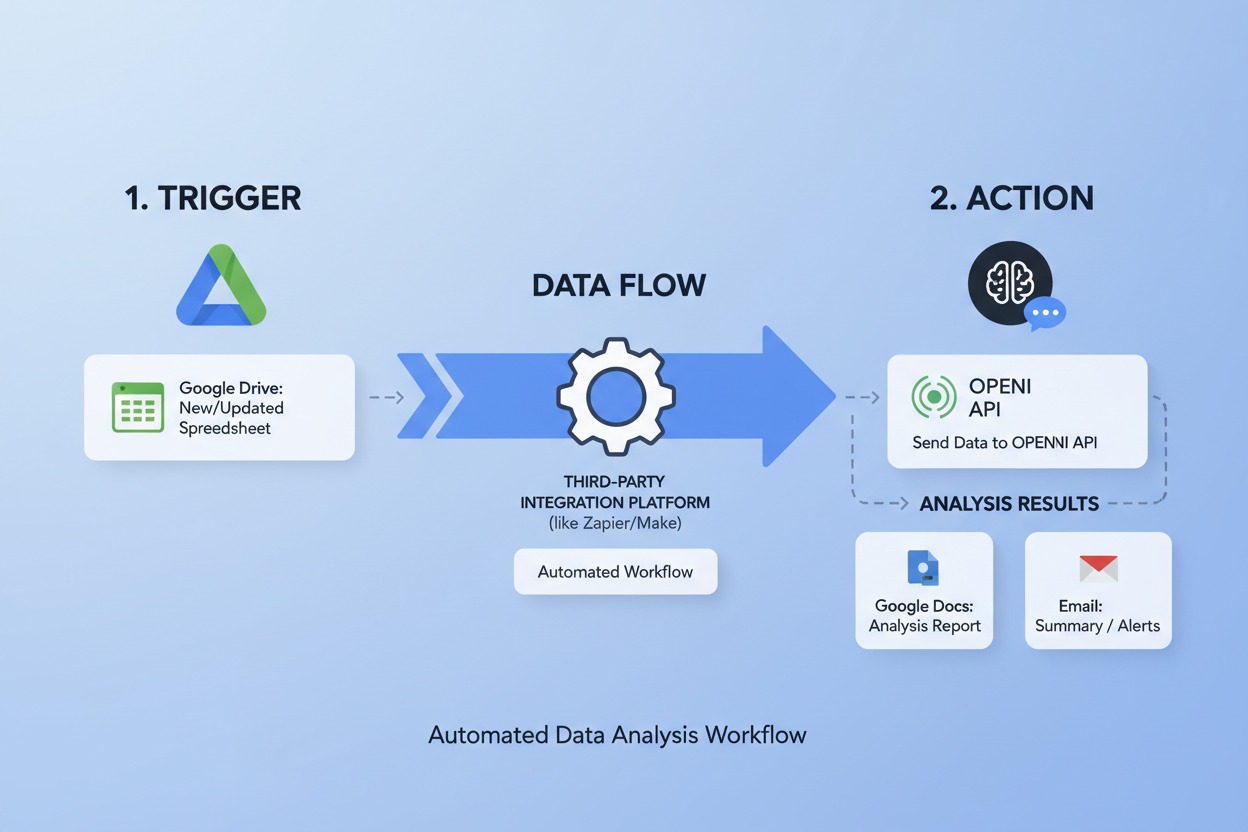
How to Connect ChatGPT to Google Drive: In 2026, the integration between ChatGPT and Google Drive has evolved from a simple file uploader into a deep, “synced” connection. OpenAI now categorizes these as “Apps” (formerly Connectors), allowing for real-time data analysis where ChatGPT can “read” your Drive like a live database.
Here is the current workflow to connect your Drive and perform instant data analysis.
1. Connecting Your Account (The “App” Method)
In the 2026 interface, you no longer need to upload files manually for every chat. You can establish a persistent link.
- Open Settings: Click your profile icon in the bottom-left corner and select Settings.
- Navigate to Apps: Go to the Apps (or Connected Apps) tab.
- Find Google Drive: In the App Directory, locate Google Drive and click Connect.
- Authorize & Sync: Sign in with your Google account.
- Critical 2026 Step: Ensure you toggle on “Enable Sync.” This allows ChatGPT to index your Drive in the background, making search results and data retrieval nearly instantaneous.
2. Analyzing Data Inside a Chat
Once connected, you can pull data into any conversation without leaving the interface.
- The “+” Menu: Click the + icon next to the message bar and select Add from Google Drive.
- The “@” Mention: You can now type
@Google Drivefollowed by your request (e.g., “@Google Drive analyze the Q1_Sales_Data.csv spreadsheet”). - Multi-File Analysis: You can select up to 20 files at once from your Drive to compare datasets, look for trends across different quarters, or merge information from a PDF report with an Excel sheet.
3. Interactive Data Visualization Features
In 2026, ChatGPT doesn’t just give you a text summary; it provides an Interactive Data Surface:
- Expandable Tables: When ChatGPT reads your Drive data, it opens a dynamic table view. You can filter, sort, and edit cells directly within the chat window.
- Switch to Interactive Charts: After ChatGPT generates a graph, you can toggle the “Interactive” mode to hover over data points, toggle legends on/off, or change the chart type (e.g., from Bar to Line) without re-prompting.
- Automatic Cleaning: You can prompt: “Clean the ‘Date’ column in my linked Drive file and handle missing values.” ChatGPT will perform the Python-based cleaning and offer to save the cleaned version back to your Drive.
4. Analysis Capabilities for 2026
| Feature | Capability |
| Statistical Modeling | Run regressions, T-tests, or correlation matrices on Drive files. |
| Cross-Platform Sync | Compare a Google Sheet with a file from SharePoint or OneDrive in one chat. |
| Real-Time Citations | Clickable links that show exactly which row/page in your Drive the data came from. |
| Deep Research | Ask: “Summarize the sentiment of all customer feedback Docs in my ‘Feedback’ folder.” |
Pro-Tips for Data Privacy
- Workspace Controls: If you are using a Team or Enterprise plan, your Admin must enable the Google Drive “App” from the Admin Console before you can connect.
- Selective Sync: You can choose to sync your entire Drive or only specific “Project Folders” to keep your personal files private from the AI’s indexing.
- Model Selection: For complex data science tasks, ensure you are using GPT-5.4 Thinking (the 2026 flagship model), as it handles multi-step Python execution with much higher accuracy than the “Instant” models.