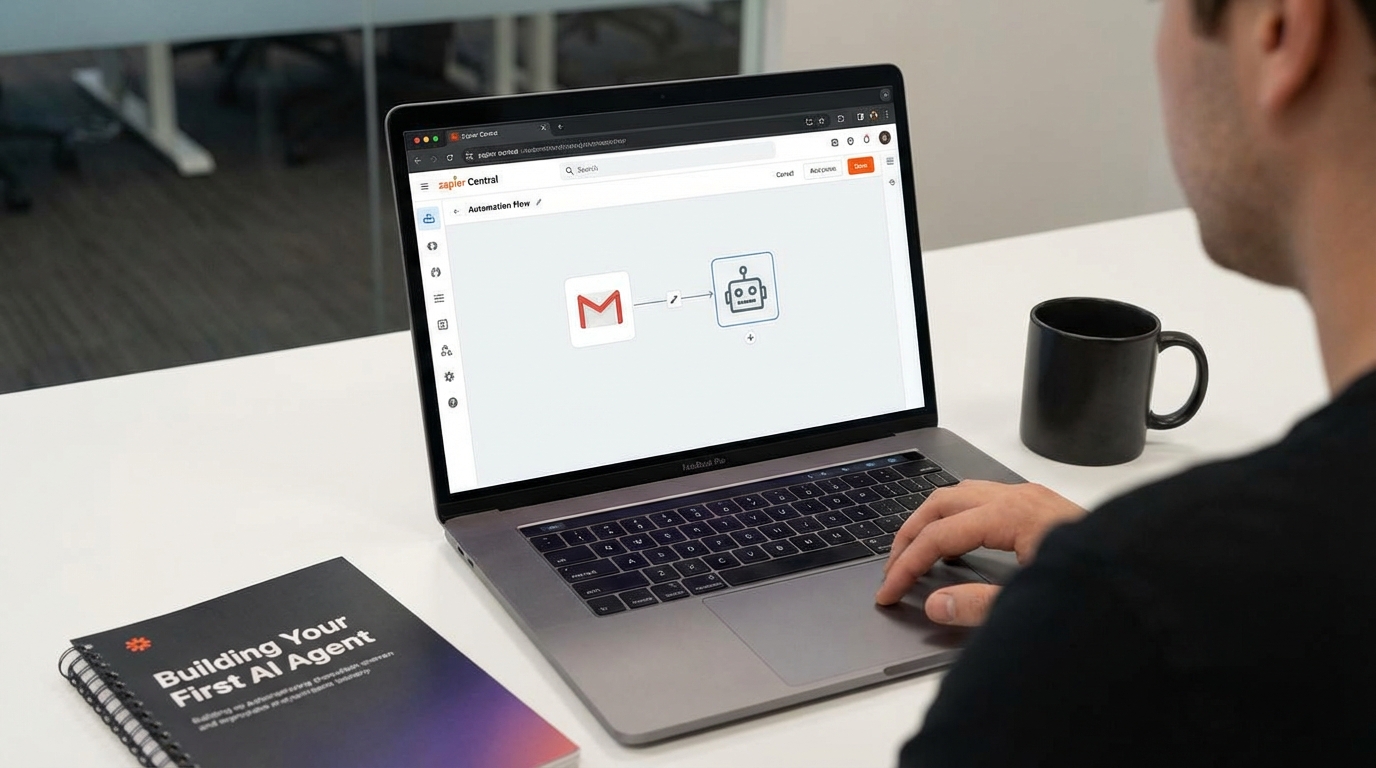
Building Your First AI Agent: How to Automate Your Email Inbox with Zapier Central.
Building Your First AI Agent: In 2026, the concept of a “Zap” (trigger → action) has been largely superseded by the AI Agent. While traditional automation requires you to define every single rule, Zapier Central allows you to build an agent that understands the context of your emails, makes decisions, and takes action across 8,000+ apps.
Building an AI agent to handle your inbox is the best “beginner” project for the 2026 digital workforce. Here is how to move from a cluttered inbox to an automated command center.

Step 1: Define the Agent’s “Mission”
A common mistake is asking an agent to “Manage my email.” In 2026, successful agents need a specific Role.
- Bad: “Read my emails and help me.”
- Good: “You are an Executive Triage Assistant. Your goal is to identify high-priority client inquiries, summarize them, and draft responses using our company’s 2026 tone-of-voice guidelines.”
Step 2: Connect Your Knowledge Base
Unlike old chatbots, Zapier Central agents can “read” your files to give accurate answers.
- In the Central dashboard, go to Knowledge.
- Upload your FAQ documents, Pricing Sheets, or Project Briefs.
- Now, when an email asks “What are your 2026 rates?”, the agent won’t guess; it will look at your uploaded PDF and draft a factual reply.
Step 3: Configure “Behaviors” (Triggers & Actions)
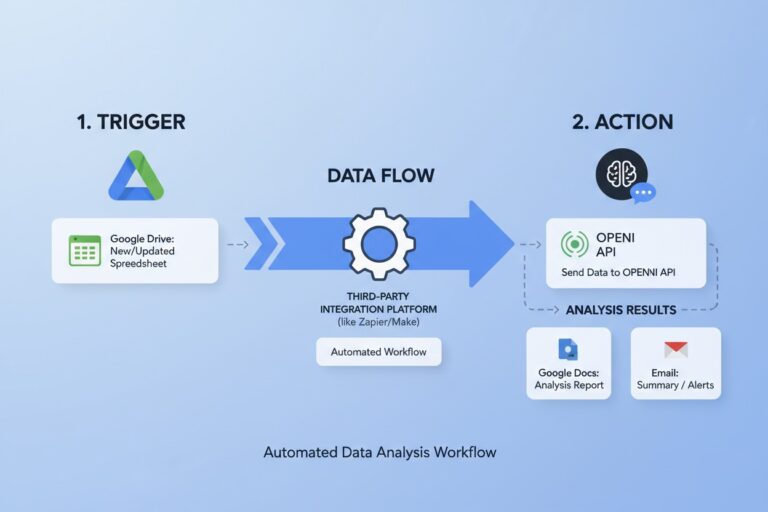
This is where the agent moves from “thinking” to “doing.” You will set up a loop: Perceive → Reason → Act.
| Component | Setting for Email Automation |
| Trigger | Gmail: New Email in Inbox (or specific label). |
| Instruction | “Analyze the intent of this email. If it’s a lead, research their company using the Web Browser tool. If it’s a spam bot, archive it.” |
| Action 1 | Slack: Send a summary of high-priority leads to the #sales channel. |
| Action 2 | Gmail: Create a draft reply based on our ‘Services’ knowledge source. |
Step 4: Add “Human-in-the-Loop” Guardrails
In 2026, fully autonomous agents are powerful but risky. Zapier Central now includes a “Needs Action” dashboard.
- Set your agent to Draft rather than Send.
- You can review the agent’s reasoning in the Activity Log and click “Approve” before the email actually leaves your outbox. Over time, as the agent learns from your feedback, you can toggle on “Full Autonomy” for specific senders.
Step 5: Test and Iterate with “Copilot”
Use the Zapier Copilot chat interface at the bottom of your screen to tweak the agent in real-time. If you notice the agent is being too formal, simply type: “Hey, make the email drafts sound more like a friendly peer and less like a legal document.” The agent will instantly update its system prompt.
Pro-Tips for 2026
- Agent-to-Agent Calling: You can now instruct your Email Agent to “call” your Calendar Agent to find a meeting time, without you ever touching either app.
- Context Windows: Ensure your instructions stay under the 2026 token limits (roughly 2,000 words of instructions) to prevent the agent from getting “confused.” Use Knowledge Sources for large amounts of data instead.